



PHJOY Login: Secure Access, Recovery and Account Tips
PHJOY Login gives registered users access to their casino account through a username and password. A clean login routine helps prevent simple errors, protects account access, and makes it easier to recover a password without creating another account or repeatedly guessing credentials.
PHJOY Login Screen and Account Access
The Login window is deliberately simple. Existing account holders enter a username and password, while anyone without an account can move to Register instead. Keeping those two routes separate sounds obvious, but it prevents one of the most frustrating account problems: creating another account simply because the original password was forgotten.
Inside the login panel, the main controls are easy to recognize:
- Username field
- Password field
- Password visibility icon
- Remember checkbox
- Forgot Password link
- Login button
- Register option
- Terms and Services confirmation
There is also an age confirmation stating that the user is at least 18 years old and has read applicable terms and conditions.
For returning users, Login should remain the first choice. Registration belongs to someone starting fresh, not someone temporarily locked out of an existing account.
A failed login is an access problem first. It does not automatically mean a new account is needed.
That distinction becomes especially important when an existing account already contains personal details, account history, or a Peso balance.
How to Complete a PHJOY Login
A successful login usually takes less than a minute. Most avoidable problems happen before the Login button is pressed: An old password is filled automatically, a username contains an unnoticed space, or credentials are entered on the wrong page.

How to Complete a PHJOY Login
Open the Login Page Carefully
Start from the PHJOY address normally used for the account. When following a saved bookmark or previously used route, check the browser address before typing anything sensitive.
A familiar logo or similar-looking login box should never be the only thing used to identify the correct page. Copycat pages can imitate colors, buttons, and layouts surprisingly well.
For direct access, Phjoy should be treated as an account destination rather than a link to follow blindly from random messages or social posts.
Enter the Registered Username
Use the username connected to the existing account. Do not automatically substitute a phone number, nickname, or another identifier unless the Login form specifically requests it.
Before moving to the password field, check for:
- An accidental space before or after the username
- Browser autofill inserting an older username
- A second account being selected by mistake
- Typing errors caused by a mobile keyboard
These are small details, but correcting them is faster than resetting a password that was never wrong.
Enter the Current Password
Type the latest password associated with the account. If there is any doubt about what was entered, the eye icon beside the password field can help reveal a typing error before another attempt is made.
A sensible order is:
- Check Caps Lock or automatic capitalization.
- Re-enter the password manually.
- Make sure autofill has not inserted an older password.
- Verify that the username is correct.
- Use Forgot Password if the password is genuinely uncertain.
Repeatedly guessing different passwords is rarely useful. It also makes it harder to remember which credentials were actually tried.
Confirm the Account After Login
Successful access should lead to the expected account, not simply any saved session in the browser.
Before making a deposit, requesting a withdrawal, or using an existing Peso balance, glance at the account details and confirm that the correct username is active. This is particularly useful on computers or phones where more than one person has previously logged in.
Using Remember Without Losing Control of the Account
The Remember checkbox is convenient, but convenience depends heavily on the device.
On a personal phone protected by a PIN, fingerprint, face unlock, or strong device password, remembering an account can reduce repetitive typing. The same choice on a shared computer creates an unnecessary access risk.
Personal Devices
Remember can make sense when all of the following are true:
- The device belongs to one person.
- Screen locking is enabled.
- Other people cannot freely open the browser.
- Saved credentials are protected by the browser or device.
Even then, remembered credentials should not be confused with permanent login access. Browser updates, cleared cookies, manual logout, password changes, and session expiration can still require another sign-in.
Shared and Public Devices
Leave Remember unchecked on borrowed phones, office computers, internet cafés, hotel computers, or shared household devices.
After finishing, use the account’s logout function rather than simply closing the tab. A closed tab can disappear from view while the session itself remains available when the page is reopened.
That small habit matters more than complicated security advice because it deals with a common real-world situation: Someone else physically using the same device later.
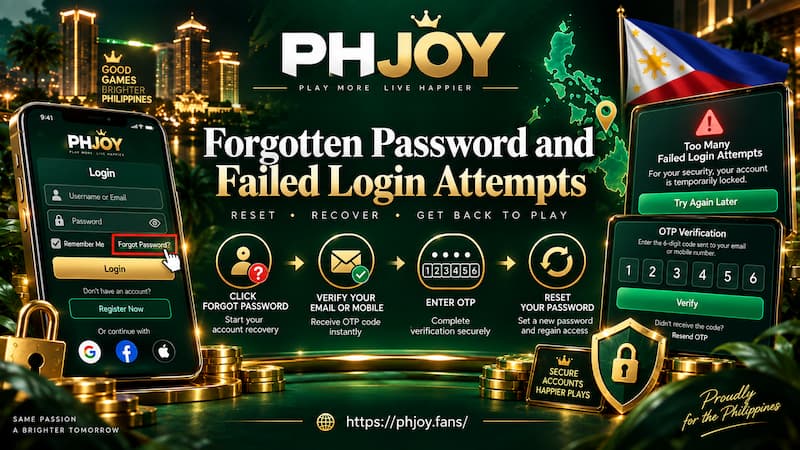
Forgotten Password and Failed Login Attempts
Not every failed Login has the same cause. Treating every error as a forgotten password can waste time.
A username problem, outdated autofill, unstable connection, and forgotten password require different fixes.
Forgotten Password and Failed Login Attempts
Use Forgot Password When the Password Is Uncertain
The Forgot Password link is the appropriate route when the password can no longer be recalled confidently.
Follow the recovery instructions presented for the account and complete the requested verification. Recovery methods can change, so rely on the instructions displayed during the process rather than assuming that a specific email, SMS, or verification method will always be used.
Once a new password is created, remove an outdated password saved in the browser. Otherwise, the next Login may fail simply because autofill keeps restoring the previous credential.
Credentials Are Being Rejected
Work through the likely causes instead of changing several things at once:
- Confirm the username.
- Delete and manually retype the password.
- Check capitalization.
- Disable or correct outdated autofill.
- Use Forgot Password when memory is uncertain.
This sequence makes the problem easier to identify. If manual entry works after autofill fails, for example, the account itself was never the issue.
The Login Page Does Not Respond
Sometimes credentials are fine and the browser session is the problem.
Try a short troubleshooting sequence:
- Reload the page once.
- Confirm that the internet connection is stable.
- Close and reopen the browser tab.
- Open a fresh normal browser session.
- Check whether other pages are loading normally.
- Use contact support if account access still cannot be restored.
Avoid repeatedly pressing Login while the connection is unstable. Multiple clicks can make it unclear whether the request was submitted successfully.
PHJOY Login on Mobile and Desktop
The credentials stay the same, but mobile and desktop devices create different kinds of mistakes.
Mobile Login
Phones make account access fast, particularly for users who regularly return to the same browser. They also introduce tiny typing problems that are easy to miss.
Automatic capitalization may affect an entry. Password managers can fill an old credential. A narrow screen may make it harder to notice that a different saved username has appeared.
Before pressing Login, a two-second check of both fields is usually enough.
For users who frequently access PHJOY from the same phone, securing the phone itself matters just as much as securing the password. A saved Login on an unlocked phone gives anyone holding the device a much easier route into the account.
Desktop Login
Desktop browsers are easier for typing but often store more account data over time.
A computer used for several accounts can retain:
- Multiple usernames
- Previous passwords
- Browser cookies
- Existing login sessions
Pay attention to which credentials autofill selects. On a shared desktop, avoid Remember and sign out fully when finished.
Protecting the Account Before and After Login
Login security does not need to become a complicated checklist. A few habits prevent most avoidable mistakes.
Use a password that is not casually shared with unrelated services. Never send login credentials or recovery information to another person simply because they claim an account check is required.
Before entering credentials, check the address. After entering the account, check the account itself.
That gives a simple routine:
- Correct address before Login
- Correct username during Login
- Correct account after Login
- Full logout when leaving a shared device
Also pay attention to unexpected changes after signing in. An unfamiliar balance, changed account details, or anything else that does not match normal account activity deserves attention before further activity continues.
Login or Register: Choose the Correct Route
The Login and Register tabs solve two different problems.
Use Login when: An account already exists and the username and password are available.
Use Forgot Password when: The account exists, but the password cannot be remembered confidently.
Use Register when: No account has been created yet.
Creating another account after a failed Login can make account management more confusing. Existing details, credentials, and balances remain connected to the original account, so recovery should normally come before registration.
PHJOY Login Check Before Entering the Lobby
A reliable Login routine can be kept short:
- Confirm the correct address.
- Select Login for an existing account.
- Check the username before continuing.
- Enter the current password.
- Use Remember only on an appropriate personal device.
- Choose Forgot Password instead of repeatedly guessing.
- Confirm the expected account after access.
- Log out fully when using a shared device.
The aim is not simply to reach the casino lobby quickly. Good account access means reaching the right account, keeping control of the credentials, and knowing exactly what to do when something does not work.